Ask five teams where their client conversations happen and you’ll get five different answers. A WhatsApp group for one client, a long email thread for another, a Slack channel for the client who likes Slack, and a task board somewhere that half the team forgets to update.
None of these are wrong, and plenty of good teams run on them. The trouble starts when you grow: more clients, more people on your side, and nobody is sure where the last decision was made.
Here are the five setups we see most often when a team has to manage client communication, what each does well and where it breaks. We make World Wide Assist, one of the five, so we’ve tried to say plainly when another setup fits better.
The short version
- One or two clients and a small team: a WhatsApp group or plain email is often enough.
- Your team already lives in Slack and your clients don’t mind joining: Slack plus a task tool like Trello or Asana works.
- Clients mostly need files, approvals and invoices: look at a client portal.
- Several clients, a team that shares the work, and you want chat, tasks and a calendar in one place: one workspace for your team and your clients, like World Wide Assist.
What a team needs from client communication
When we talk to teams that work with clients, the same five things come up again and again:
- Every client has its own place. You shouldn’t have to scroll past one client’s messages to find another’s.
- The right people see it, and nobody else. The designer on one account doesn’t need every other client’s conversations.
- Requests turn into work someone owns. “Can you change the header?” should end up as a task with a name on it, not as a message everyone read and nobody did.
- Dates live in a calendar. Calls, deadlines and appointments shouldn’t depend on someone remembering a message from Tuesday.
- A new teammate can catch up on their own. When someone joins the account, the history should be there for them, not on a colleague’s phone.
They’re the yardstick for each setup below and for the table further down.
1. WhatsApp groups with clients
Most teams fall into this one without deciding on it. Everyone already has WhatsApp, so somebody makes a group and the work starts.
Works well when
- You have one or two clients and a very small team.
- Most messages are quick questions, photos and voice notes.
- The client won’t install anything new.
Where it breaks
- Work and family chats sit side by side on the same phone, and a client message at 10 pm starts to feel normal.
- Each client is one long thread. Decisions get buried between “thanks!” and “ok 👍”.
- There are no tasks, so a request only exists in someone’s memory.
2. Email threads
Email is the professional default. Every client has it, nobody needs a tutorial, and it leaves a record.
Works well when
- You need formal approvals, quotes or anything you want on record.
- The client talks to you every few days, not every few minutes.
- The client works with many suppliers and won’t join anyone’s app.
Where it breaks
- Threads split. Someone forgets to reply all, someone else gets dropped from CC.
- Files travel as attachments, so there are four versions of the same document.
- Quick back-and-forth turns into a slow game of email tag.
3. Slack plus Trello or Asana
Many agencies run on a chat app plus a task tool. Clients join Slack as guests who see only the channels you choose, or share a channel from their own Slack through Slack Connect. The work lives on a Trello board or in an Asana project, where clients can be guests too.
Works well when
- Your team already spends its day in Slack.
- You rely on integrations, automations or timeline views. These tools have them, and that matters for some teams.
- Your clients use Slack themselves and like working there.
Where it breaks
- It’s two tools, so every new client means two invites and a channel and a board set up by hand.
- Requests get made in chat and never make it onto the board.
- Your calendar is a third app, outside both.
4. A client portal
A client portal is a login area built for clients: files, messages, requests and approvals, and often invoices and your own branding.
Works well when
- Your work is heavy on files, sign-offs and billing.
- Clients log in now and then rather than chatting all day.
- You want the client view to carry your brand.
Where it breaks
- A portal is made for the client side. Your team’s own chat usually happens somewhere else.
- Clients forget to log in, so you end up chasing them by email anyway.
5. One workspace for your team and your clients
Everything in one app: your team’s chat, a chat room for each client, tasks, a calendar and contacts, with roles that decide who sees what. This is what World Wide Assist is built for.
Works well when
- You have several clients and a team that shares the work.
- Clients need to talk to you and follow their own tasks.
- You’re tired of switching between a chat app, a task app and a calendar.
Where it breaks
- It’s one more app your clients have to join.
- If your work depends on connecting many other tools, an all-in-one app can feel closed.
- It fits a team that works with its clients, less so a freelancer who works inside each client’s own tools.
The five setups side by side
Here’s the same checklist from the top of the post, applied to each setup. “Varies” means it depends on the product you pick.
| WhatsApp groups | Slack + Trello or Asana | Client portal | World Wide Assist | ||
|---|---|---|---|---|---|
| Own place per client | Yes, a group per client | Partly, by thread | Yes, a channel and a board you set up | Yes | Yes, each client gets a group chat with its assigned Co-Workers, plus a one-on-one chat with each of them |
| Your team’s own chat | A separate group | No | Yes, in Slack | Usually elsewhere | Yes, in the same app |
| Requests become tasks | No | No | Yes, in the task tool | Varies | Yes, with status, comments and files |
| Shared team calendar | No | In a separate calendar app | In a separate calendar app | Varies | Yes, a company calendar plus personal calendars |
| Who sees what | Everyone in the group sees everything | Whoever is on the thread | Guest and channel settings in each tool | Yes, per client | Four fixed roles. Each client sees only its own chats, tasks and assigned Co-Workers, never other clients. Co-Workers see only the clients they’re assigned to |
Want to see the last column with your own team and clients?
Free for up to 3 users. iOS, Android and web app.
How the one-workspace setup looks in World Wide Assist
If the last column sounds like your team, here’s what it looks like day to day. Everything below is live in the app today.
Every client gets a room of their own
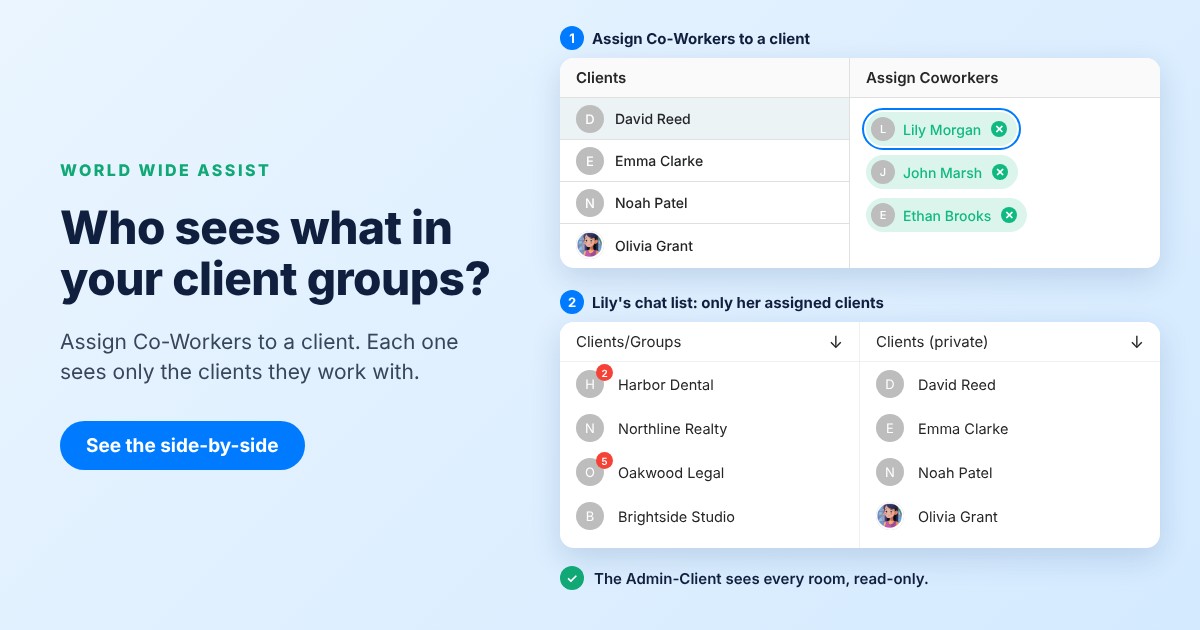
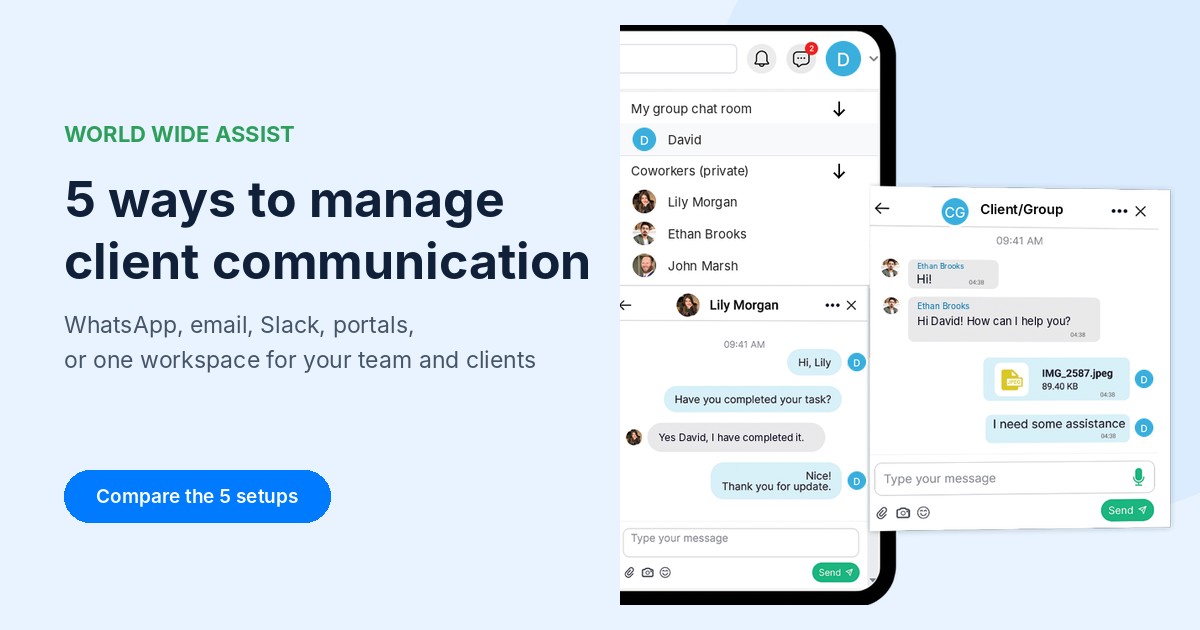
Every client in your workspace gets two kinds of chat, set up for you. First, a group chat room with the client and all the Co-Workers assigned to them, so the whole account talks in one place. Second, a one-on-one chat between the client and each assigned Co-Worker, for the quick questions that don’t need everyone. Your team keeps its own company group chat, so internal talk never lands on the client’s screen. See How to Assign Team Members to Clients.

Each person sees their own part of the work
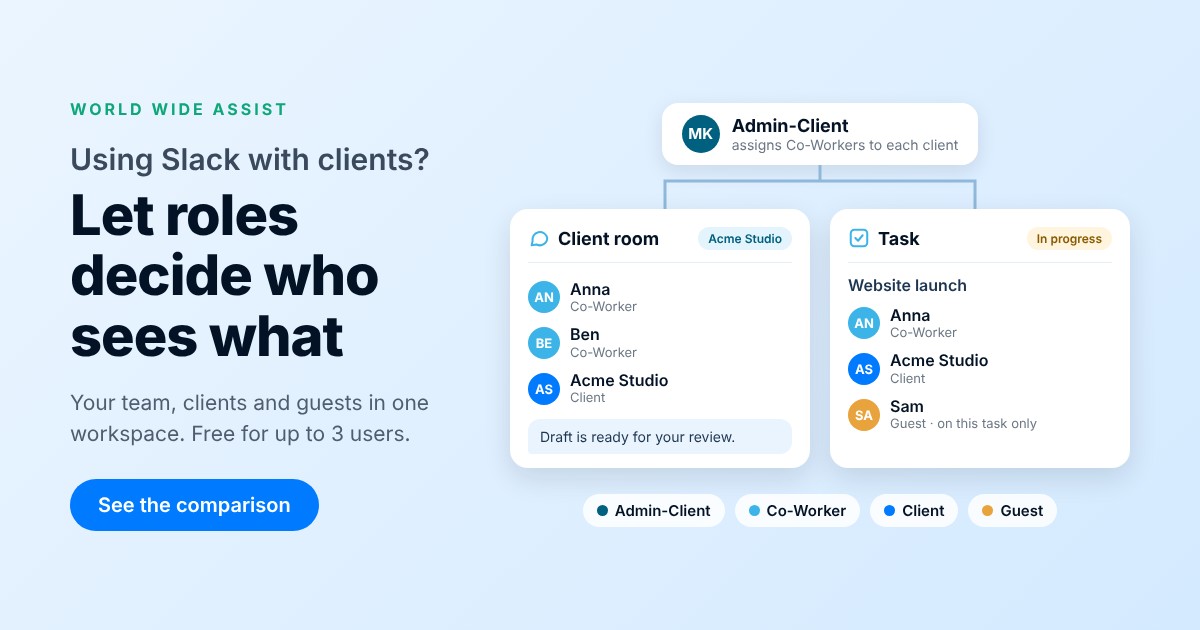
There are four roles: Admin-Client, Co-Worker, Client and Guest. A Co-Worker sees only the clients they’re assigned to. The Admin-Client can open every chat room read-only, to catch up on an account without stepping into the conversation. Details in User Roles and Permissions and Chat Permissions.
Requests become tasks, and the client can follow along
Work goes into tasks with a status: open, in progress, stopped, resolved or canceled. Everyone on a task can comment, reply and attach files, the client included. Clients can also bring in their own people as Guests, who join the comments on the tasks they’re added to and see only those tasks. More in Task Comments and Attachments.
One calendar for the team, the right events for everyone else
Admin-Clients and Co-Workers share one company calendar, and everyone has a personal calendar with appointments, reminders and call reminders. Clients and Guests see the events they’re added to, so a Guest can follow the client’s schedule without seeing your team’s. See Team Calendar and Calendar Permissions.
Keep the chat open while you work
In the web app, the chat stays open on the side while you move between tasks, the calendar and the phonebook, so you can answer a client and update their task without closing anything. The phone apps don’t have this layout. More in Chat While You Work.

Your workspace holds only your people
In many apps, one account can belong to lots of companies’ workspaces. In World Wide Assist, a workspace is your company’s own team: people join because your Admin-Client invited them, or because a client invited their own Guests. Your workspace holds only your team, your clients and the guests they invite.
When World Wide Assist isn’t the right fit
We’d rather you pick the right setup than the wrong app. World Wide Assist is probably not for you if:
- You need integrations with other tools. It doesn’t connect to other apps today.
- You plan projects with Gantt charts, timelines or milestones.
- You need to export your data to another system.
- You want your calendar to sync with Google Calendar or Outlook. The calendar lives inside the app.
- You’re a freelancer who works inside each client’s own tools rather than bringing clients into yours.
Frequently asked questions
Is it OK to use WhatsApp groups with clients?
For a small team with one or two clients, often yes. It gets harder when several people share a client or when requests need to become tasks.
Should clients be in our Slack?
It can work well if your team already lives in Slack. Add clients as guests limited to certain channels, or share a channel with their Slack through Slack Connect, and plan who removes access when a project ends.
How do we stop client requests getting lost in chat?
Agree on one rule: if a message asks for work, it becomes a task with an owner the same day. That’s easiest when tasks sit right next to the chat.
Can clients see our internal team chat in World Wide Assist?
No. Each client has its own client chat room with the Co-Workers assigned to it. Your team’s internal chats, including the company group chat, stay between Admin-Clients and Co-Workers. Guests have no chat at all; they take part through task comments.
How much does World Wide Assist cost?
The Free Beginner plan is free for up to 3 users, with every feature included and no credit card. Once a workspace has more than 3 users, the User Base plan is $13 per user per month for all users, including Clients and Guests.
Give every client a room of their own
Bring your team chat, client rooms, tasks and calendar into one workspace for your team and your clients.
Free for up to 3 users. iOS, Android and web app.
Related guides
- How to Assign Team Members to Clients
- Team and Group Chat
- Chat Permissions
- User Roles and Permissions
- Task Comments and Attachments
- Team Calendar
- Chat While You Work
WhatsApp, Slack, Slack Connect, Trello and Asana are trademarks of their owners. World Wide Assist is not affiliated with them. Product details for other tools were checked against their help pages in November 2026 and may change.