Most small businesses don’t choose WhatsApp groups for client work. They just end up there. A client asks a question, someone makes a group, and a year later the team runs twenty of them. WhatsApp groups for business are fast, there’s nothing to install, and every client already has the app, so it makes sense.
The trouble starts when real work is at stake: a deadline, a payment, a promise to a client. Then the questions change. Who can see which client? Can the owner follow what the team agreed? Who decides who’s in the group? And where do the tasks live?
This guide covers how to set up client groups well, what WhatsApp’s admin controls can and can’t do, and three ways to handle it. World Wide Assist is one of those options, and we’ve tried to be fair to WhatsApp, which does a lot right. For the wider picture, see How to Manage Client Communication as a Team: 5 Common Setups.
The short version
- A few clients, a small team, everyone works on everything → WhatsApp groups with clear admin rules are fine.
- Many client groups and staff who come and go → make the business owner an admin of every group, and write the rules down.
- Several people answering customers from one business number → WhatsApp Business or a WhatsApp add-on tool.
- Client work with tasks, deadlines and an owner who needs to follow every client → a separate workspace with a room per client and fixed roles, like World Wide Assist.
What a business needs once client work is at stake
Group size rarely matters. A client group has five or ten people in it, and WhatsApp allows up to 1,000. What matters is control. We’ll use these five questions for every option below:
- Who sees which client. Each client sees only their own conversation, and each team member sees only the clients they work on.
- An owner overview. The owner can follow every client conversation, even the ones they don’t take part in.
- Control over who’s in. The business decides who joins and leaves each client conversation, not one staff member’s phone.
- Tasks and deadlines. What was agreed becomes a task with a person, a status and a date.
- History that stays with the business. When someone joins or leaves the team, the client’s history doesn’t come and go with them.
How businesses use WhatsApp groups today
The usual setup is one group per client, sometimes one per project, with the team on one side and the client’s people on the other. Many teams add a second group to talk about the same client among themselves.
Works well when
- The client wants quick answers and already lives in WhatsApp.
- You share lots of photos, voice notes and short updates (“ok 👍”).
- The team is small and everyone works on every client.
Where it breaks
- Groups pile up, and one person can end up in dozens of them.
- A message meant for the team lands in the client’s group.
- Decisions and files get buried, and “what did we promise?” means scrolling back for ages.
Set up a client group the right way
If you stay on WhatsApp, use the controls it already has. They’re better than many people think. Group admins can:
- Choose who can add and remove people, and approve new members who join by invite link.
- Limit who can change the group’s name, icon and description, and use the description for the group’s purpose and rules.
- Switch the group to admin-only messages, which is handy for announcements.
- Delete a problem message for everyone.
- Make other members admins, or take admin rights away.
Groups also have polls and events with RSVPs, so simple coordination works. Communities link related groups under one umbrella, with an announcement group to reach everyone. The WhatsApp Business app adds labels, quick replies, away messages and a catalog, and one business number can run on several phones or computers.
One rule to set on day one: the business owner should be an admin of every client group. If the only admin leaves a group, WhatsApp picks a new admin at random from the members, and it may not be you.
Who sees what when client work is at stake
WhatsApp’s controls are real, but they work inside each group. Here’s where they stop, one question at a time.
Who sees which client
Everyone in a group sees everything in it. That’s fine until the group includes a freelancer who should see one job, or a comment meant for the team goes to the client. The only way to separate people is to make more groups.
How the owner follows the work
WhatsApp has no owner view across groups. You see the groups you’re in. If a staff member creates a client group from their own number, the owner may not even know it exists.
Who controls who’s in
Each group has its own admins and its own member list. When a new team member starts, someone adds them to every right group by hand. When someone leaves, someone removes them from every group, one by one, and hopes none were missed.
How things get done
“We’ll send it Friday” is a promise, not a task. Events and polls help, but there’s no task with a person, a status and comments for each client. History lives on each member’s own phone, and a new member sees earlier messages only if someone shares them (WhatsApp now lets members share up to 100 recent messages). Export chat gives you a text file, one chat at a time.
1. Stay on WhatsApp and set rules
Keep the groups, but run them on purpose: the owner is an admin everywhere, every group has a description, and the team’s own talk stays out of client groups.
Works well when
- You have a handful of clients and a small, stable team.
- Your clients won’t use anything else.
- Tasks are simple enough to track somewhere else.
Where it breaks
- Rules only work while everyone follows them.
- There’s still no view of groups the owner isn’t in.
- Tasks still live in someone’s head or in another app.
2. Add a WhatsApp add-on tool
Add-on tools sit on top of WhatsApp. Many give you a shared inbox, so several staff can answer from one business number, and some help manage groups through WhatsApp’s business platform.
Works well when
- Your clients and customers must stay on WhatsApp.
- Most of the work is answering incoming messages.
- You want staff on one business number instead of their own phones.
Where it breaks
- It’s built for answering customers, not for running client projects.
- Tasks, a team calendar and client roles usually need another tool.
- What you can do depends on WhatsApp’s business rules and the add-on’s own limits.
3. Move client work to a separate workspace
A separate app where each client has its own room and the team works around it. World Wide Assist is one example. It’s its own app, not a WhatsApp add-on, so it’s also a WhatsApp alternative for business teams that work with clients.
Works well when
- You run many clients, with different team members on each.
- The owner needs to follow every client without joining every conversation.
- What you agree with clients should become tasks with dates.
Where it breaks
- Clients need one more app, or the web app in a browser.
- You lose “everyone already has it”.
- In World Wide Assist there are no video calls and no integrations with other tools.
WhatsApp groups vs World Wide Assist, side by side
| WhatsApp groups | World Wide Assist | |
|---|---|---|
| Who sees which client | Everyone in a group sees everything in it. To separate people, you make more groups. | Each client sees only their own chats and tasks. Co-Workers see only the clients they’re assigned to. |
| Owner overview | You see the groups you’re in. | The Admin-Client has a read-only view of every chat room. |
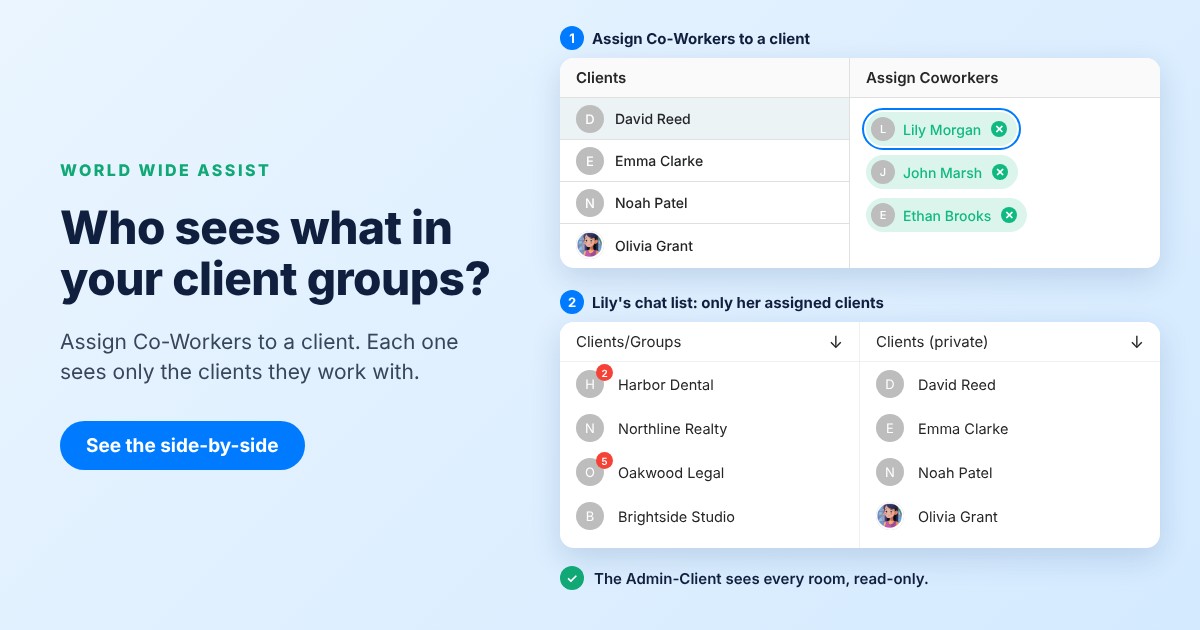
| Control over who’s in | The admins of each group, one group at a time. | The Admin-Client assigns Co-Workers to a client, and they join that client’s room. |
| Tasks and deadlines | Events and polls. No tasks. | Tasks with statuses, comments and files, plus a shared company calendar. |
| History | On each member’s own phone. New members see earlier messages only if someone shares them. | Chats stay in your company’s workspace (there’s no data export). |
| Clients already have it | Yes. | No. Clients join by invite on iOS, Android or the web app. |
Want to see the right-hand column with your own team and clients?
Free for up to 3 users. iOS, Android and web app.
How client work looks in World Wide Assist
Here’s how the same five questions are handled in World Wide Assist, our client communication app.
A room for every client, made for you
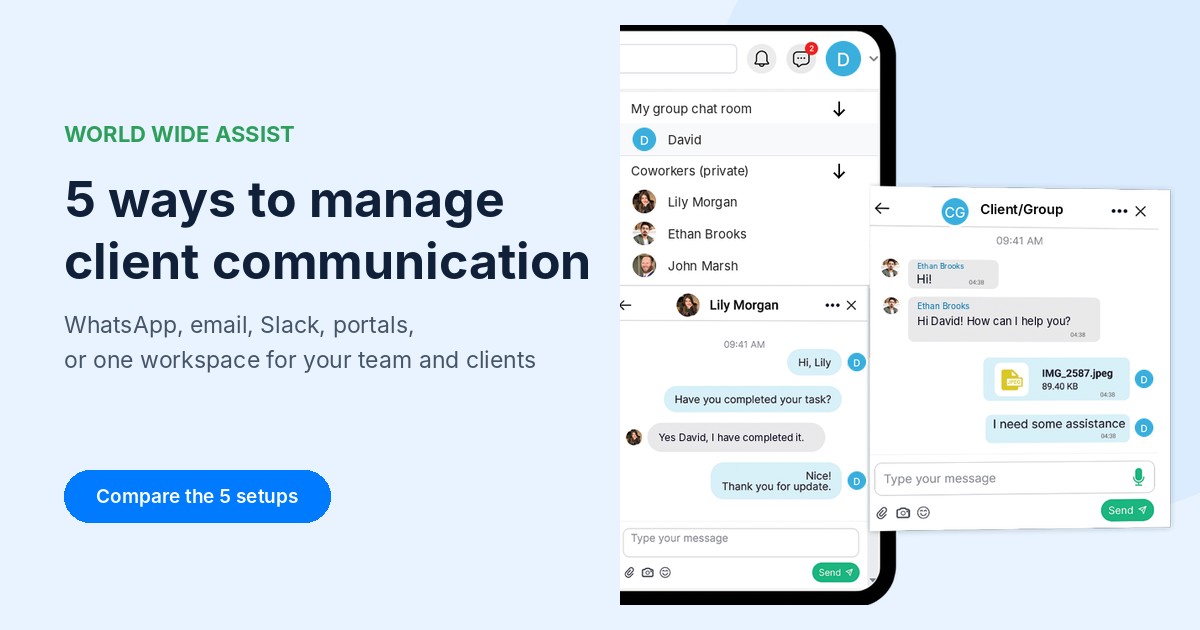
When you create a Client, they get their own group chat room with all the Co-Workers assigned to them, plus a one-on-one chat with each assigned Co-Worker. Your team has its own company group chat, so the team’s notes stay out of the client’s room. The client’s room is created for you, so there’s no group to set up. See How to Assign Team Members to Clients.
Roles decide who sees what
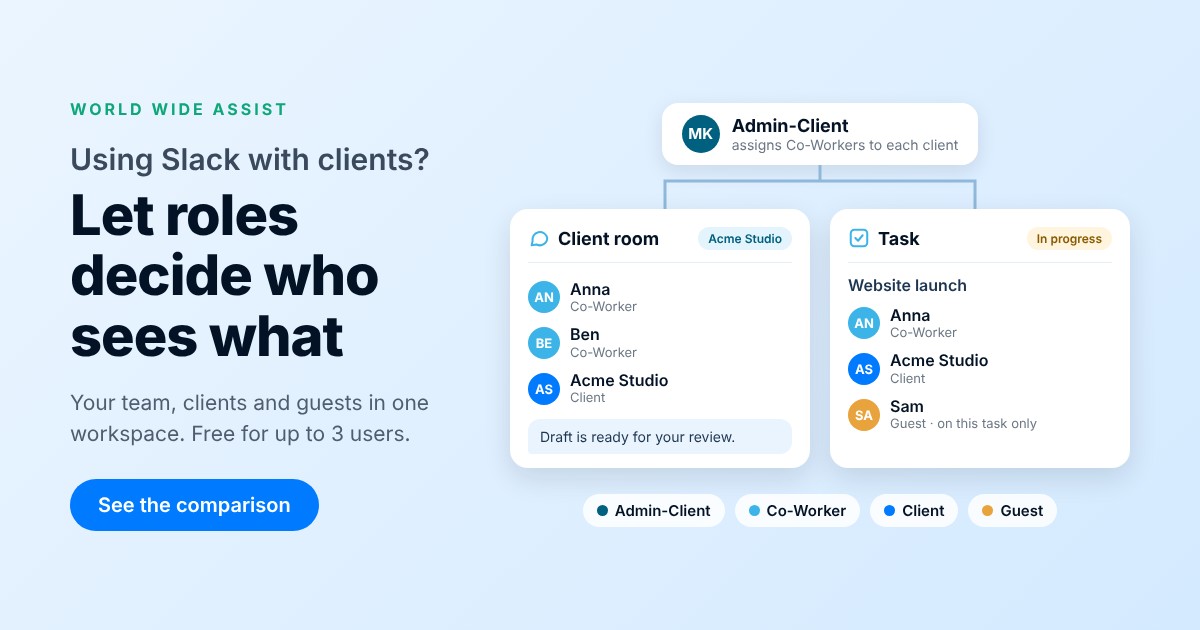
There are four fixed roles: Admin-Client, Co-Worker, Client and Guest. Each client sees only their own chats, tasks and assigned Co-Workers, never other clients. Co-Workers see only the clients they’re assigned to. More in User Roles and Permissions.
The owner can follow every client
The Admin-Client can open every chat room in read-only view, including client rooms they aren’t part of. They can read and search, but can’t post there. To follow one client more closely, the Admin-Client can turn on that client’s task, calendar and chat notifications (off by default). See Chat Permissions and Push On Settings: Client Activity Notifications.
Promises become tasks
“We’ll send it Friday” becomes a task with the client on it, a status (Open, In Progress, Stopped, Resolved or Canceled), comments and files. Need an outside helper, like the client’s accountant? Add them as a Guest: Guests join the comments on tasks they’re added to, without seeing the client’s chats. See Task Assignment and Task Comments and Attachments.
One calendar for the team
Admin-Clients and Co-Workers share a company calendar, and everyone has a personal one. Clients and Guests see the events they’re added to, so a Guest can follow the client’s schedule. See Calendar Permissions.
Keep the chat open while you work
In the web app, the chat stays open next to your tasks, calendar and phonebook, so you can answer a client while you update their task. This is web app only. See Chat While You Work.
A closed workspace for your company
Your workspace holds only your team, your clients and the guests they invite. The Admin-Client invites users, and Clients can invite their own Guests. When a team member leaves, the Admin-Client deactivates them, and the client’s room stays with your company.
When World Wide Assist isn’t the right fit
- Your clients won’t install another app, and WhatsApp is the only place they answer.
- Most of your work is answering lots of incoming customer messages. A shared inbox fits better.
- You need integrations with other tools, Gantt charts or timelines, or data export.
- You need video calls, or a calendar that syncs with Google or Outlook (ours doesn’t).
- You’re a freelancer who works inside each client’s own tools.
FAQ
Should a business make one WhatsApp group per client?
Often, yes. It’s the cleanest setup WhatsApp offers. Make the owner an admin, write the group’s purpose in the description, and keep the team’s own talk in a separate group. Once you have dozens of client groups, that’s usually the sign to set stricter rules or move client work to a separate workspace.
What happens to a client group when the employee who made it leaves?
The group keeps working. If they were the only admin, WhatsApp makes another member admin at random, and the messages they already have stay on their phone. That’s why the owner should be an admin from the start. In World Wide Assist, the Admin-Client deactivates the user and assigns another Co-Worker, and the client keeps the same room.
Can I see all my team’s client groups without joining each one?
Not in WhatsApp. You see the groups you’re in. In World Wide Assist, the Admin-Client has a read-only view of every chat room in the workspace, including one-on-one chats between other users, and can’t post in them.
Will my clients have to download a new app?
Yes, or use the web app in any browser. World Wide Assist runs on iOS, Android and the web. Many teams start by moving one client first and keep WhatsApp for the rest until it feels natural.
How much does World Wide Assist cost?
The Free Beginner plan is free for up to 3 users, with all features and no credit card. Over 3 users, the User Base plan is $13 per user per month for all users, including Clients and Guests.
Give your client groups a proper home
Start with one client: create their room, assign your team and turn the next promise into a task.
Free for up to 3 users. iOS, Android and web app.
Related guides
- Chat Permissions
- How to Assign Team Members to Clients
- User Roles and Permissions
- Task Assignment
- Task Comments and Attachments
- Calendar Permissions
- Push On Settings: Client Activity Notifications
WhatsApp is a trademark of its owner. World Wide Assist is not affiliated with it. Product details for WhatsApp were checked against its official help pages and blog in November 2026 and may change.