Using Slack with clients feels like the obvious next step. Your team already lives there, so you invite a client, open a channel, and replies come back in minutes instead of days. For many teams it works well.
Then you add a second client, then a tenth. Someone has to decide which channels each client joins, which team members belong in them, where the tasks live and how everyone knows what’s due on Friday. And there’s always one client who simply won’t use Slack.
This guide explains how clients get into Slack (guest accounts or Slack Connect), what Slack does well, and where client work gets hard. World Wide Assist is one of the options we cover, and we’ve tried to be fair to Slack, which many of us use every day. For the wider picture, see How to Manage Client Communication as a Team: 5 Common Setups.
The short version
- Your clients already use Slack → a Slack Connect channel for each client.
- A few clients and a paid Slack plan → guest accounts, one channel per client.
- Many clients, a growing team and a lot of setup by hand → set up access rules once, or use a workspace with roles built around clients.
- You want chat, tasks and one company calendar per client, with roles that decide who sees what → a team and client workspace like World Wide Assist.
What a team needs when clients join the chat
Whatever tool you pick, these five things decide whether client work stays under control. We’ll use them for every option below:
- Who sees which client. Each client sees only their own conversation, and each team member sees only the clients they work on.
- Little setup per client. Adding a new client or team member shouldn’t mean a checklist of channels and invites.
- An owner overview. The owner can follow every client without joining every conversation.
- Tasks and dates next to the chat. What you promise a client becomes a task, and the team shares one calendar.
- Clients who don’t use Slack can still take part. Without falling back to email.
Slack guest accounts vs Slack Connect: how clients get in
There are two ways to bring a client into Slack, and they suit different clients.
Guest accounts
On paid plans, you can add a client as a guest in your own workspace. A Single-Channel Guest gets one channel, and a Multi-Channel Guest gets the channels you add them to. Guests see the members and the message history in their channels, and they can’t create public channels or install apps. Owners and Admins send guest invites, and they can set a guest account to end on a date, which is handy when a project finishes.
Slack Connect
Slack Connect links your workspace with the client’s own Slack in a shared channel or a direct message. Shared channels need every organization on a paid plan, while direct messages work on any plan. People from outside see only the channels they’re invited to, and the organization that created a channel keeps it if the other side disconnects.
Rule of thumb: if the client already uses Slack, Slack Connect is the smoother choice. If they don’t, they’ll need a guest account, and that’s where many teams hit the first wall.
How teams set up Slack for clients
Slack’s own advice is one or two channels per client, for example a shared channel with the client and an internal one for the team. Many teams add a Slack List per client to track tasks (Lists have assignees and due dates), a canvas for notes, and a calendar app that connects each person’s Google or Outlook calendar.
Works well when
- Your clients already use Slack and like quick replies.
- You need integrations, huddles or automations with Workflow Builder.
- Someone on the team enjoys keeping channels, Lists and invites tidy.
Where it breaks
- Every new client means new channels, invites and a new List, set up by hand.
- Clients who don’t use Slack treat it like email, or never log in.
- Decisions sink in long threads, and someone copies them into the project tool later.
Where Slack stops for client work
Slack isn’t missing tools. The difference is structure: in Slack, a client is a channel you set up and keep tidy. Here’s what that means for the five needs.
Access is set channel by channel
Slack’s controls are detailed, but they work per channel and per person. Each guest gets their channels, each List gets its sharing, and full team members can see and message each other. When a team member starts working on a client, someone adds them to the right channels and Lists. Nothing ties “this client” together.
No single view of every client
An owner sees the channels they’re in. On the higher plans, channel management tools list channels and their settings, but there’s no view that shows each client’s conversation, tasks and dates in one place.
Tasks and calendar live next to the chat, not with the client
Slack Lists track work well, but someone creates and keeps up a List for each client. For dates, Slack’s help pages describe calendar apps that connect each person’s own calendar, not a built-in shared calendar for the team.
Clients who won’t use Slack
Guest accounts need a paid plan, and a shared channel needs the client’s company on a paid plan too. Some clients join and send long, email-style messages. Others go back to email, and the conversation splits in two.
Slack vs World Wide Assist for client work
| Slack with guests | Slack Connect | World Wide Assist | |
|---|---|---|---|
| Who sees which client | Set per channel: guests see only the channels they’re added to. | People from outside see only the shared channels they’re invited to. | Roles decide: a Client sees only their own chats, tasks and events. Co-Workers see only their assigned clients. |
| Setting up a new client | Create channels, invite the guest, add the team, share a List. | Connect with the client’s workspace, then add your team to the channel. | Create the Client and assign Co-Workers. Their chat room is created for you. |
| Owner overview | The channels you’re in, plus channel management tools on the higher plans. | Same as with guests. | The Admin-Client has a read-only view of every chat room. |
| Tasks | Slack Lists with assignees and due dates, created per client by hand. | Same as with guests. | Tasks with the client on them, statuses, comments and files. |
| Shared calendar | Calendar apps that connect each person’s own Google or Outlook calendar. | Same as with guests. | One company calendar for the team, plus personal calendars (no Google or Outlook sync). |
| Clients who don’t use Slack | A guest account on a paid plan. | Needs the client’s company on a paid plan for a shared channel. | The client joins your workspace by invite, on iOS, Android or the web app. |
Want to see roles do the setup for you?
Free for up to 3 users. iOS, Android and web app.
One workspace for your team and your clients
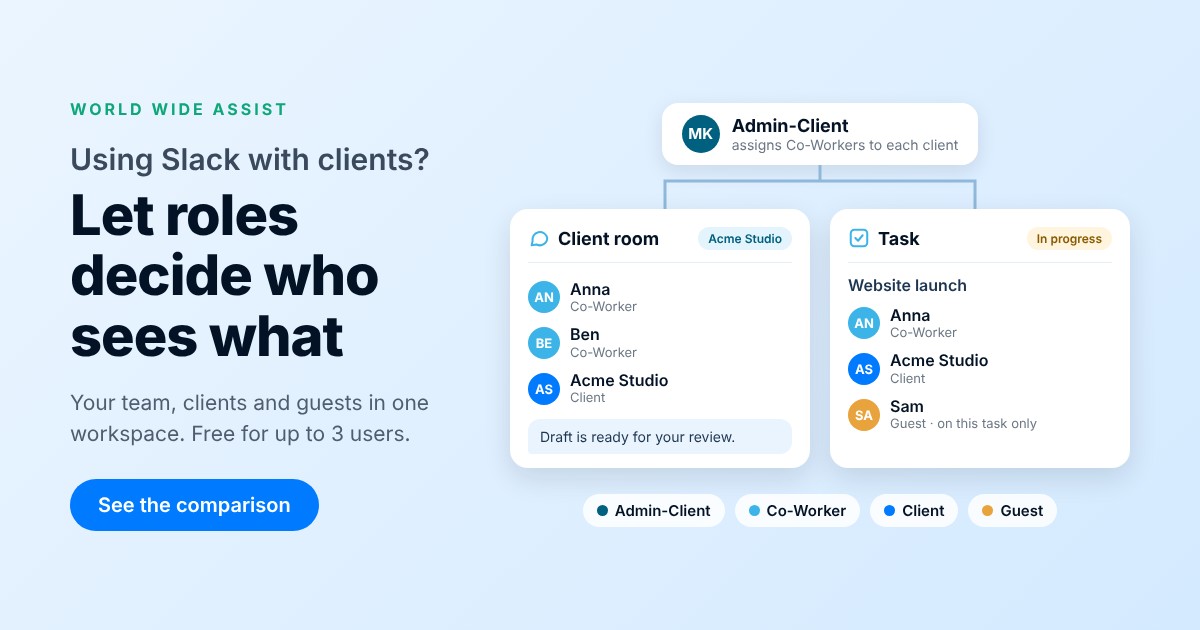
World Wide Assist starts from a different idea. Your team and your clients work in the same workspace, and fixed roles decide who sees what. Clients and Co-Workers work side by side, and each person sees only their own part. Nobody sets access channel by channel.
Four roles that build your team around each client
- Admin-Client: runs the workspace, invites users, assigns Co-Workers to clients, and has a read-only view of every chat room.
- Co-Worker: a team member who sees only the clients they’re assigned to. One Co-Worker can work with many clients.
- Client: sees only their own chats, tasks and events, and the Co-Workers assigned to them. Never other clients.
- Guest: someone the client brings in, like their accountant. Guests have no chat, but they join the comments on tasks they’re added to and see the events they’re invited to.
Roles are fixed, so the same rules apply in chat, tasks and the calendar. More in User Roles and Permissions.
A client room, made when you assign the team
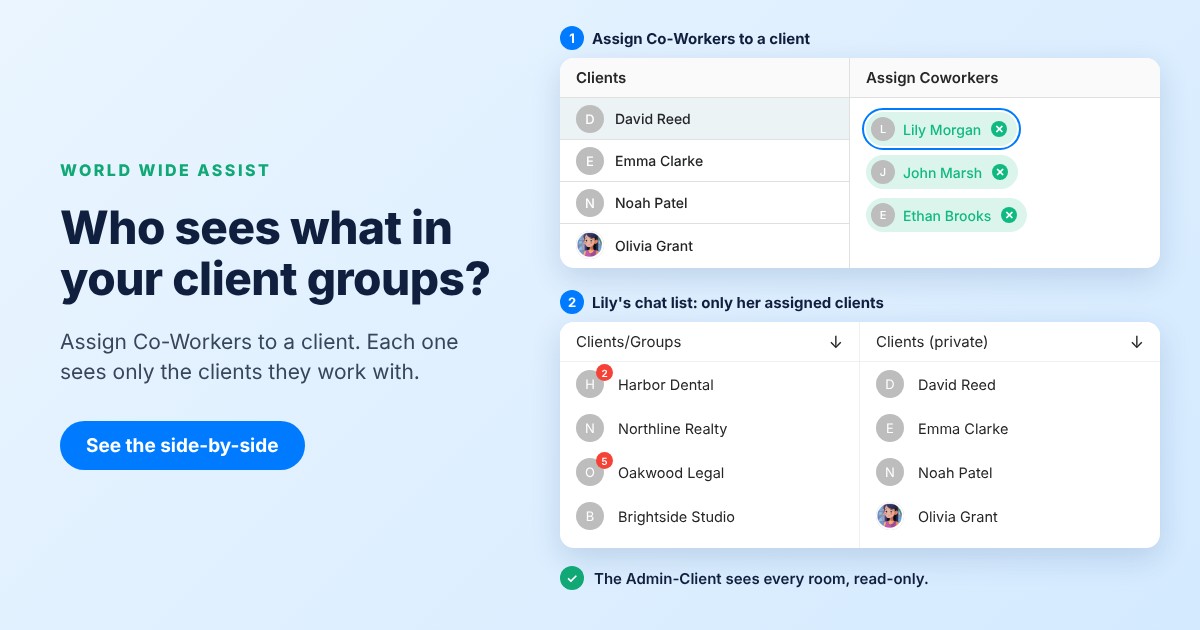
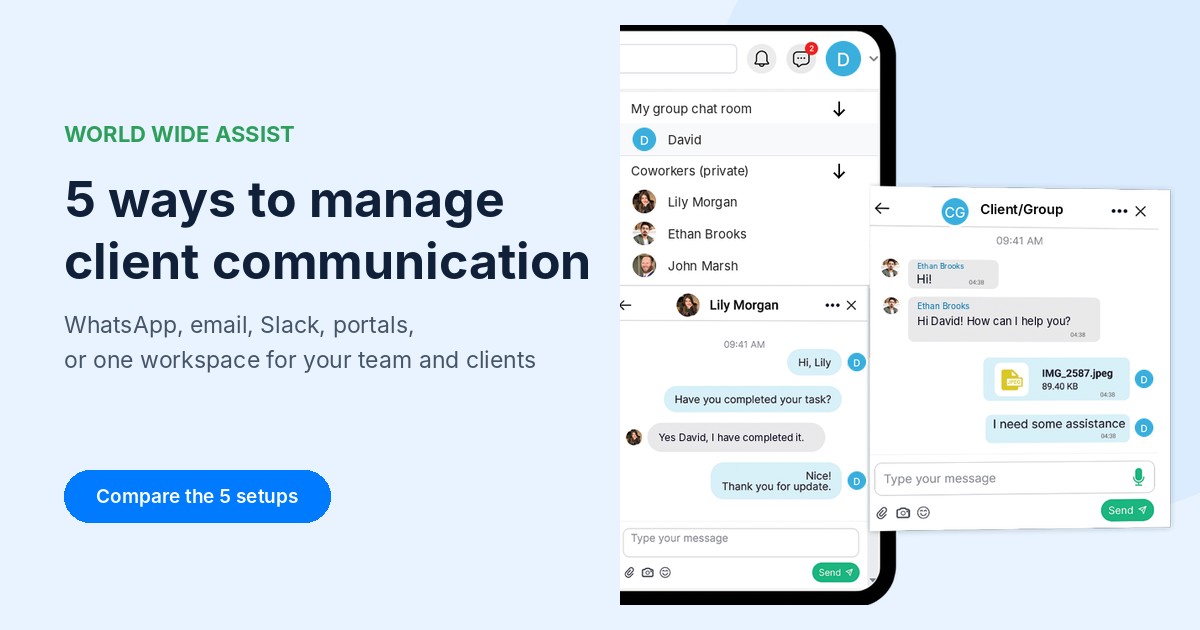
When you create a Client, they get their own group chat room. Assign a Co-Worker, and they join that room and get a one-on-one chat with the client. Your team has its own company group chat, so internal talk stays out of the client’s room. See How to Assign Team Members to Clients and Chat Permissions.
Tasks next to the chat
A promise in the chat becomes a task with the client on it, a status (Open, In Progress, Stopped, Resolved or Canceled), comments and files. Everyone on the task sees the same thread. See Task Permissions.
One company calendar
Admin-Clients and Co-Workers share one company calendar, and everyone has a personal calendar too. Clients and Guests see the events they’re added to. See Team Calendar.
Chat open while you work
In the web app, the chat stays open next to tasks, calendar and phonebook, so you can answer a client while you update their task. This is web app only. See Chat While You Work.
A closed workspace for your company
Your workspace holds only your team, your clients and the guests they invite. The Admin-Client invites users, and Clients can invite their own Guests.
When World Wide Assist isn’t the right fit
- Your clients already live in Slack and want to work from their own workspace. Slack Connect fits better.
- You rely on integrations, Workflow Builder automations or data exports. World Wide Assist has none of these today.
- You need huddles, video calls or screen sharing.
- You want board views, Gantt charts or timelines, or a calendar that syncs with Google or Outlook (ours doesn’t).
- You’re a freelancer who works inside each client’s own Slack.
FAQ
Should a client be a Slack guest or use Slack Connect?
If the client’s company already uses Slack on a paid plan, Slack Connect lets each side stay in its own workspace. If the client doesn’t use Slack, a guest account in your workspace is the usual route, and it needs a paid plan.
What if a client doesn’t want to use Slack?
Many teams end up with a mix of Slack, email and WhatsApp groups. If that’s where you are, see WhatsApp Groups for Business: Who Sees, Follows and Controls What. In World Wide Assist, the client still signs in to an app, but they see one room with your team and their own tasks and events, not a whole workspace full of channels.
Can clients and team members share a workspace without seeing each other’s conversations?
Yes. In World Wide Assist, each client sees only their own chats, tasks and events, and each Co-Worker sees only the clients they’re assigned to. The team’s own talk stays in the company group chat, which clients don’t see.
Can the owner see every client conversation?
In World Wide Assist, the Admin-Client can open every chat room in read-only view, including rooms they aren’t part of, and can’t post there. In Slack, an owner sees the channels they’re in, and the higher plans add channel management tools.
How much does World Wide Assist cost?
The Free Beginner plan is free for up to 3 users, with all features and no credit card. Over 3 users, the User Base plan is $13 per user per month for all users, including Clients and Guests.
Let roles do the setup for every client
Create your first Client, assign your team, and see what each person sees.
Free for up to 3 users. iOS, Android and web app.
Related guides
- User Roles and Permissions
- How to Assign Team Members to Clients
- Chat Permissions
- Team and Group Chat
- Task Permissions
- Team Calendar
- Chat While You Work
Slack and Slack Connect are trademarks of their owner. World Wide Assist is not affiliated with Slack. Product details for Slack were checked against its official help pages in November 2026 and may change.